
Best Edtech Tools for Homework Support at Home
Start with school-provided accessibility, then match supplementary tools to your child specific learning barrier.
Best Edtech Tools for Homework Support at Home

Edtech tools for homework support at home are digital platforms that provide scaffolded guidance to help pupils complete assignments with greater independence and understanding. The best tools go beyond answer delivery. They combine tutoring support, curriculum-aligned resources, and assistive technology features that accommodate diverse learning profiles, including pupils with special educational needs (SEN). This article covers practical criteria for UK parents and students, with particular attention to tools that reduce barriers during homework. Plain-language definitions are in our glossary.
What makes edtech tools for homework support at home effective
Not every digital homework tool is built equally. The difference between a tool that accelerates learning and one that simply provides answers is significant, and parents need clear criteria to make the right choice.
The most critical feature is scaffolded guidance over answer delivery. The Education Endowment Foundation describes scaffolding as temporary support that aims to fade over time and build independence. A tool that hands over answers trains dependency. A tool that asks guiding questions builds genuine understanding.

Curriculum alignment matters. Tools that map resources to what the school is teaching reduce the risk of contradictory practice at home. Check whether a tool supports your child's curriculum framework before relying on it for supplemental work.
For pupils with SEN, assistive technology features are the access point. Look for tools that include:
- Read-aloud and text-to-speech for pupils with dyslexia or visual processing difficulties
- Voice typing and dictation for pupils with dysgraphia or fine motor challenges
- Predictive text to reduce cognitive load during writing tasks
- Text simplification and summarisation for pupils with comprehension barriers
Privacy and interoperability certifications matter. The 1EdTech TrustEd Apps Directory lists products reviewed for data privacy and technical compatibility. Certification is a useful filter, not a guarantee every tool will plug into your child's school stack without extra setup.
Pro Tip: Before downloading any homework app, search for it in the 1EdTech TrustEd Apps Directory. Certification means the tool has been assessed beyond its marketing claims for privacy compliance and school system compatibility.
UK tools many families already have access to
Before buying new subscriptions, check what your child's school already provides. Many English schools use Microsoft 365 or Google Workspace for Education, which include built-in accessibility features:
- Microsoft Immersive Reader: Read-aloud, text spacing and translation built into Word, Teams, OneNote and Edge. Widely used in UK schools with M365.
- Read&Write (Everway): Common in English schools; provides read-aloud, prediction and dictation. Home licences may be available via school.
- Device accessibility: Built-in speech-to-text and screen readers on Windows, ChromeOS, iPad and Android reduce the need for separate apps.
- RNIB Bookshare: Accessible UK curriculum texts for eligible print-disabled learners, including those with dyslexia, via registered education organisations.
These tools are often the most practical starting point because they integrate with work pupils are already doing. See our guide on assistive technology for learning for a fuller framework.
Supplementary tools worth considering
Beyond school-provided platforms, some families add supplementary tools. Treat vendor marketing figures cautiously and match tools to your child's specific barrier rather than feature lists.
Kami: UDL-based assistive supports in web content
Kami is a browser-based annotation and reading tool that integrates read-aloud, text simplification, summarisation, voice typing and predictive text within web content pupils are already reading. Kami holds a 1EdTech Data Privacy Seal. Embedded AT reduces friction compared with separate accessibility workflows.
Best for: Pupils with SEN who need assistive supports without switching between multiple apps.
AI tutoring with scaffolding
Some AI tutoring platforms, such as EduBoost, market question-led scaffolding rather than direct answer delivery. Vendor claims should be tested against your child's needs. EEF guidance on digital technology stresses that tech must support effective pedagogy, not replace it.
Best for: Secondary pupils working independently when parents lack subject-specific expertise.
Curriculum-mapped practice resources
Platforms such as Canva Learn Grid offer curriculum-mapped resources and AI-generated activities. Canva reports more than 50,000 mapped resources; curriculum-standard filtering is available for selected countries. Parents in England should verify alignment with their school's scheme of work rather than assuming automatic National Curriculum mapping.
How assistive technology features support pupils with SEN at home
Assistive technology for homework is not a niche concern. Pupils with conditions including dyslexia, dyspraxia, ADHD and autism face specific barriers during homework that standard tools do not address. Around 10% of people in the UK are thought to be dyslexic (BDA).
Assistive technology embedded inside existing content lowers friction and increases adoption. This is the UDL principle in practice: build the support into the environment rather than requiring the pupil to seek it out.
Matching the assistive feature to the specific learning barrier tends to work better than enabling all available tools at once:
- Dyslexia: Read-aloud and text simplification address decoding and reading fluency barriers.
- Dysgraphia: Voice typing and predictive text address written output barriers.
- Attention difficulties: Chunked tasks, timers and summarisation may reduce sustained-focus demands.
Assistive technology works best when it removes the barrier between the pupil and the task, not when it replaces the task entirely. The goal is access, not avoidance.
How to evaluate privacy and school compatibility
- Check the 1EdTech TrustEd Apps Directory. Certified apps have been assessed for data privacy compliance and technical interoperability.
- Confirm data storage and processing location. Tools storing pupil data outside appropriate jurisdictions may not comply with UK GDPR expectations.
- Test single sign-on compatibility. If the school uses Google Workspace or Microsoft 365, check whether the tool supports sign-in through those systems.
- Review data retention policy. Understand how long pupil data is stored and whether it is used to train AI models.
- Ask the school's SENCo or IT coordinator. Schools often maintain approved tool lists.
Key takeaways
| Point | Details |
|---|---|
| Start with school-provided AT | Immersive Reader, Read&Write and device accessibility are often already available. |
| Scaffolding over answers | Choose tools that guide reasoning rather than delivering final solutions. |
| Match features to barriers | Dyslexia needs read-aloud; dysgraphia needs voice typing. Targeted use reduces overload. |
| Verify curriculum alignment | Check tools map to your school's actual scheme of work, especially in England. |
| Privacy certification helps | 1EdTech TrustEd Apps is a useful filter before committing to a new tool. |
Why the "best tool" question misses the point
The most common mistake is searching for the single best option rather than the best fit for a child's specific learning profile. Families sometimes invest in well-reviewed AI tutoring platforms only to find that a child with unidentified processing difficulties cannot access the tool's text-heavy interface without assistive support. The tool was excellent. The match was wrong.
The second mistake is prioritising convenience over pedagogy. Tools that deliver answers quickly feel helpful in the short term but do not build durable understanding. EEF scaffolding guidance supports guided problem-solving as an evidence-informed approach, though effect sizes vary by context.
Start with the pupil's specific barrier, not the tool's feature list. If reading is the obstacle, prioritise read-aloud and text simplification. If written expression is the barrier, prioritise voice typing. If the pupil understands the material but struggles to organise thinking, look for structured response frameworks. Capturing behavioural signals during homework in Google Docs is one way families can surface patterns worth discussing with school while waiting for formal assessment.
How Qwixl supports personalised homework help at home
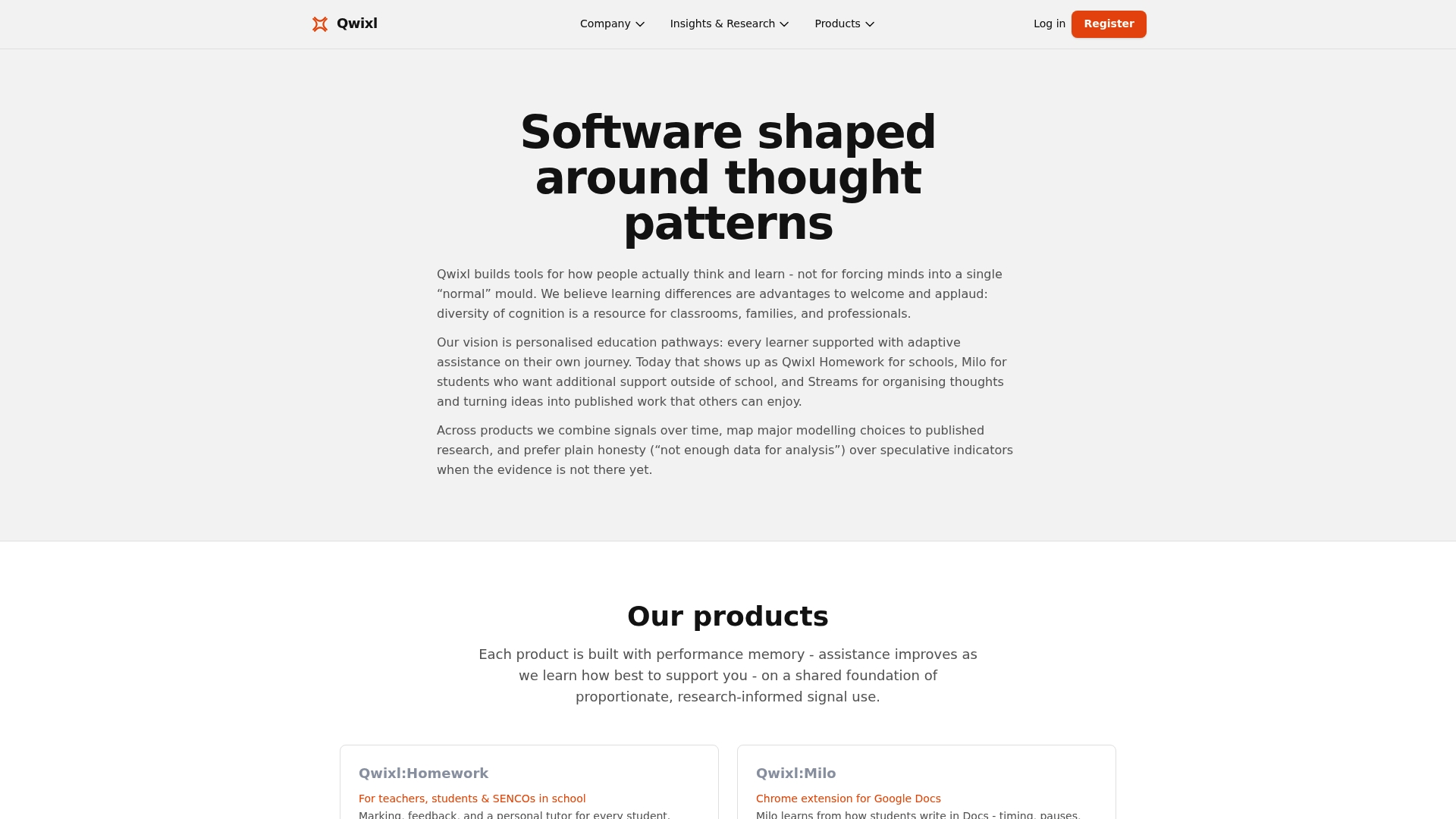
Qwixl:Milo integrates with Google Docs to offer in-context support while pupils work on homework at home. It surfaces four processing indicators (signals, not diagnoses) that can help families notice learning patterns worth discussing with school, especially while waiting for formal assessment. Schools must not require a diagnosis before putting support in place (SEND Code of Practice 2015). For school-side assignment workflows, Qwixl:Homework offers a complementary teacher and SENCo view. Neither tool diagnoses conditions or replaces statutory SEN processes.
FAQ
What are the best edtech tools for homework support at home?
Start with school-provided accessibility (Immersive Reader, Read&Write, device speech-to-text). Supplementary tools like Kami or scaffolded AI tutoring may help depending on the pupil's specific barrier.
How do edtech homework tools support pupils with SEN?
Tools that integrate read-aloud, voice typing and text simplification directly into content reduce friction for pupils with dyslexia, dysgraphia or attention difficulties. Match the specific feature to the specific barrier.
How can parents check if a homework app is safe and compatible?
The 1EdTech TrustEd Apps Directory lists certified tools assessed for data privacy and interoperability. Also ask the school's SENCo or IT coordinator about approved tools.
What is the difference between scaffolded homework help and answer delivery?
Scaffolded help guides pupils through the reasoning process using questions and explanations. Answer delivery provides the final solution without developing independent problem-solving ability.
Can edtech tools at home connect with school learning?
Tools that support Google Workspace or Microsoft 365 sign-in and file formats reduce the gap between home and school. Curriculum-mapped resources help when they align with your school's scheme of work.
Sources and further reading
- EEF, Using Digital Technology to Improve Learning
- 1EdTech TrustEd Apps Program
- British Dyslexia Association
- House of Commons Education Committee, Screen time (2024)